

How can we help you?
Step-by-step guides for connecting WhatsApp, integrating your store, configuring AI Agents, shipping carriers, retargeting, billing, and more.
WhatsApp Connection
Connect your WhatsApp Business account to enable the AI Agent.
Manual Meta Connection (Recommended)
The access token comes from a Meta Business System User, not from the WhatsApp API Setup page. System users generate permanent, never-expiring tokens.
Create a System User in Meta Business Portfolio
- Go to business.facebook.com → your Business Portfolio.
- Navigate to Settings → Users → System Users.
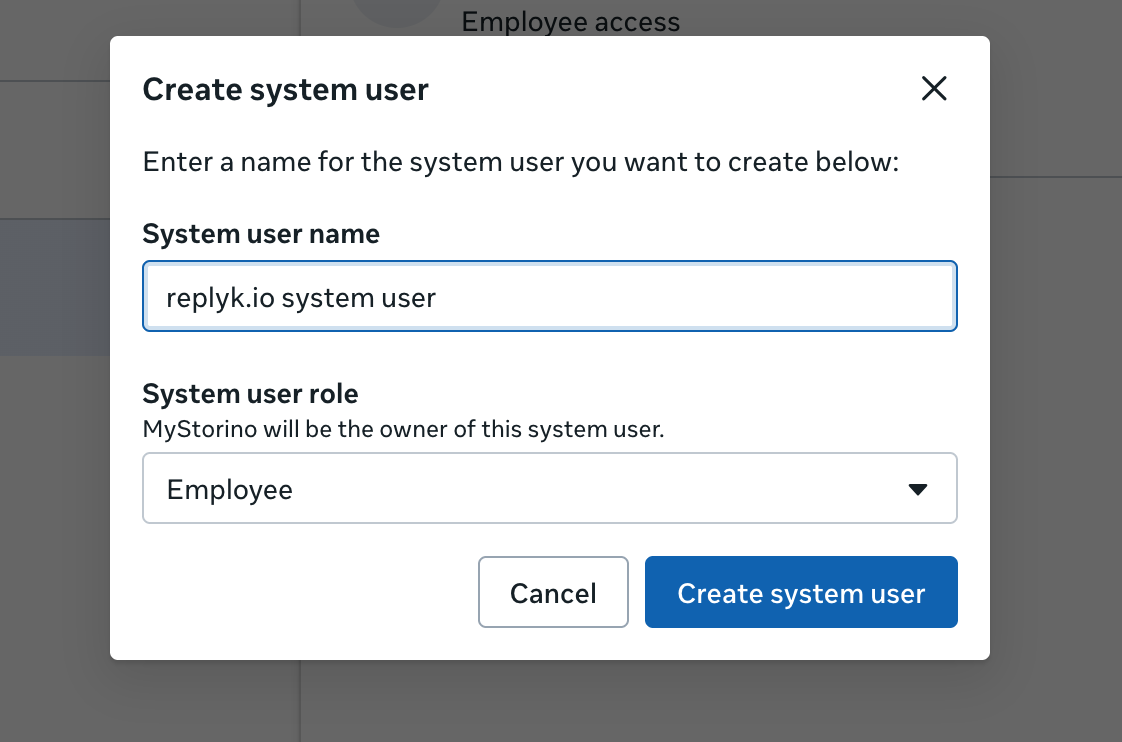
- Click + Add.
- Enter a name (e.g.
replyk.io system user) and set role to Employee. - Click Create system user.
Assign App Assets to the System User
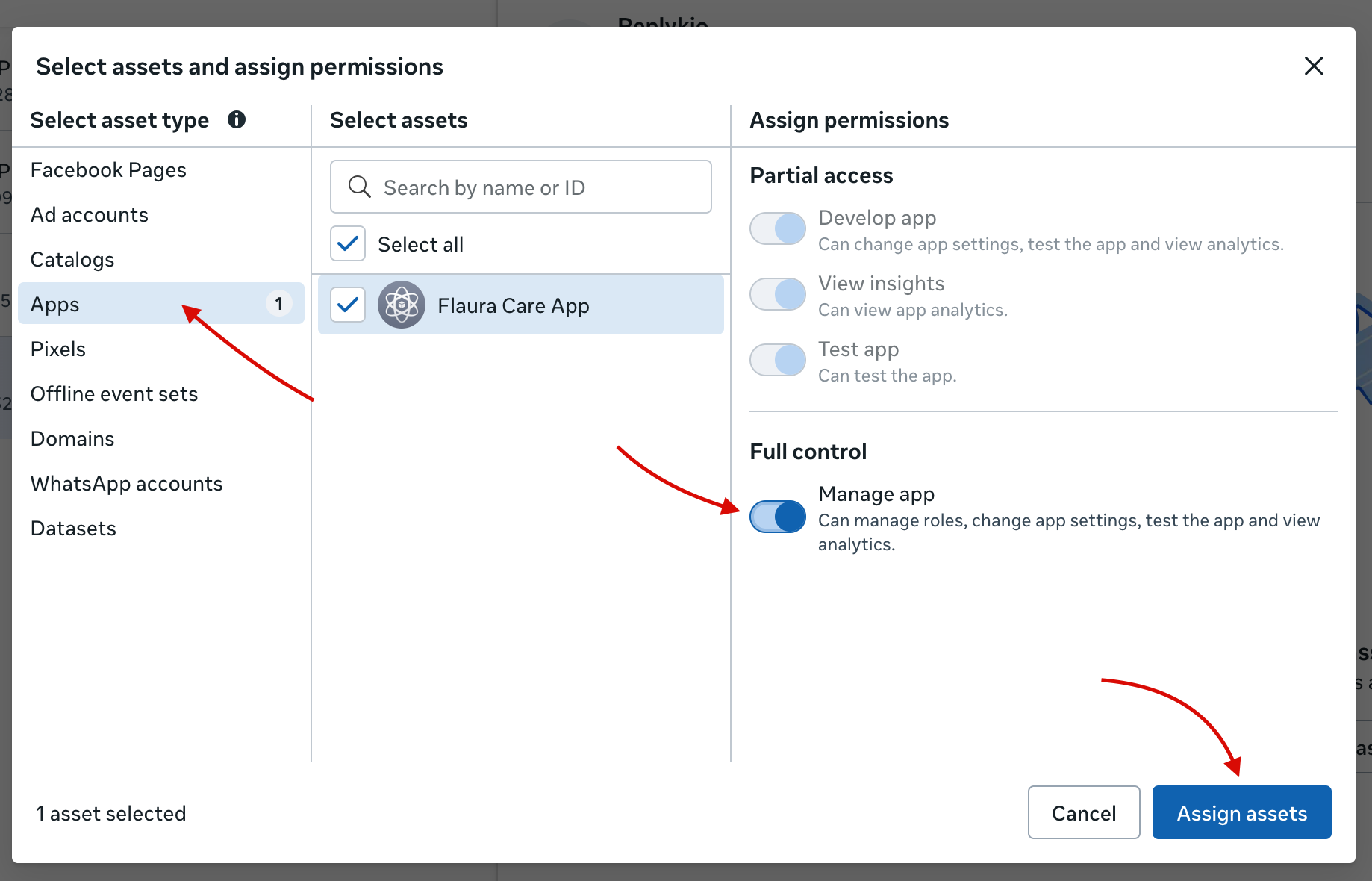
With the system user selected, click Add Assets to grant access to your Meta app.
- Select asset type: Apps.
- Select your Meta app from the list.
- Under Full control, enable Manage app.
- Click Assign assets.
Generate a Permanent Access Token
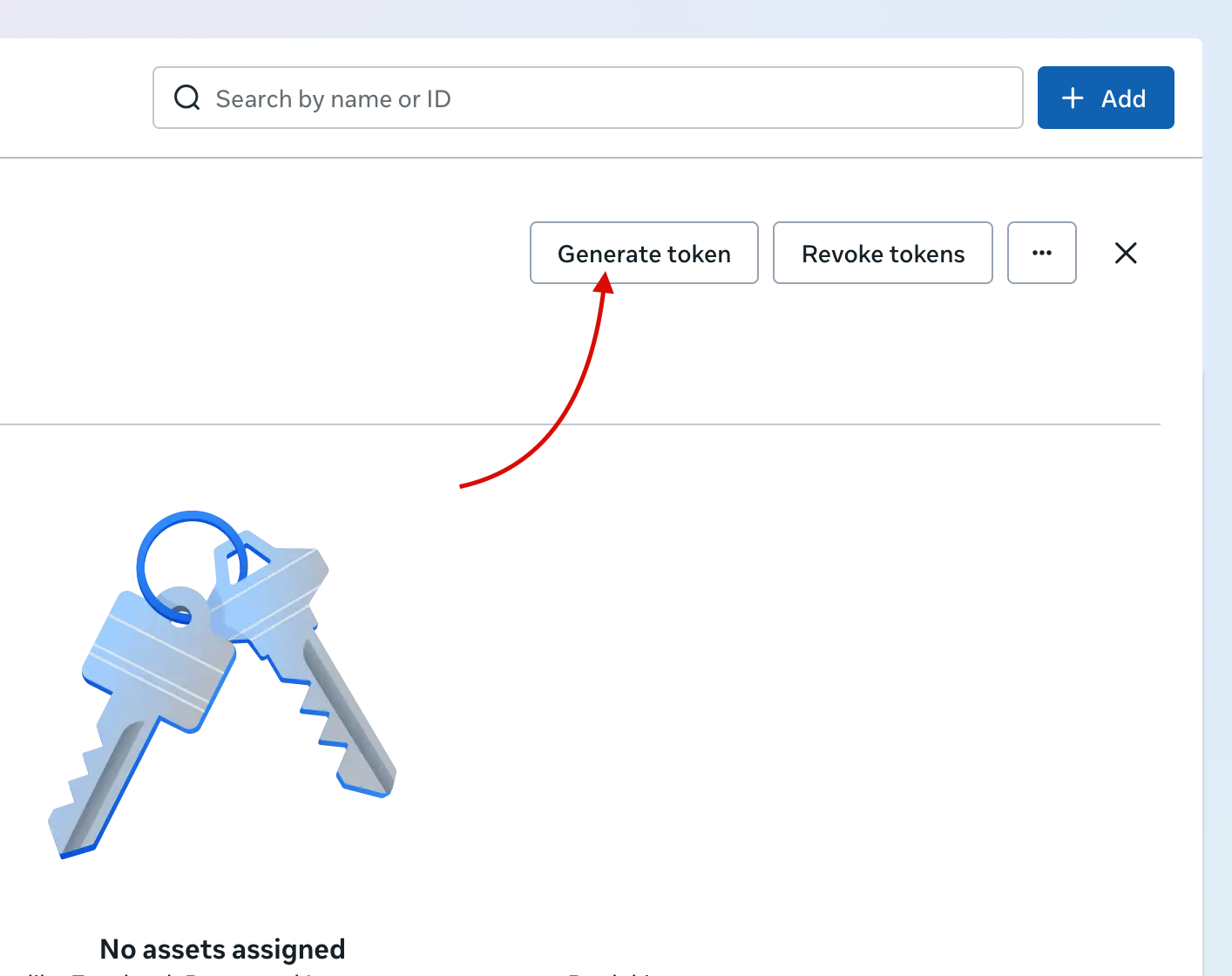
Click the Generate token button on the system user row.
3a — Select your Meta App
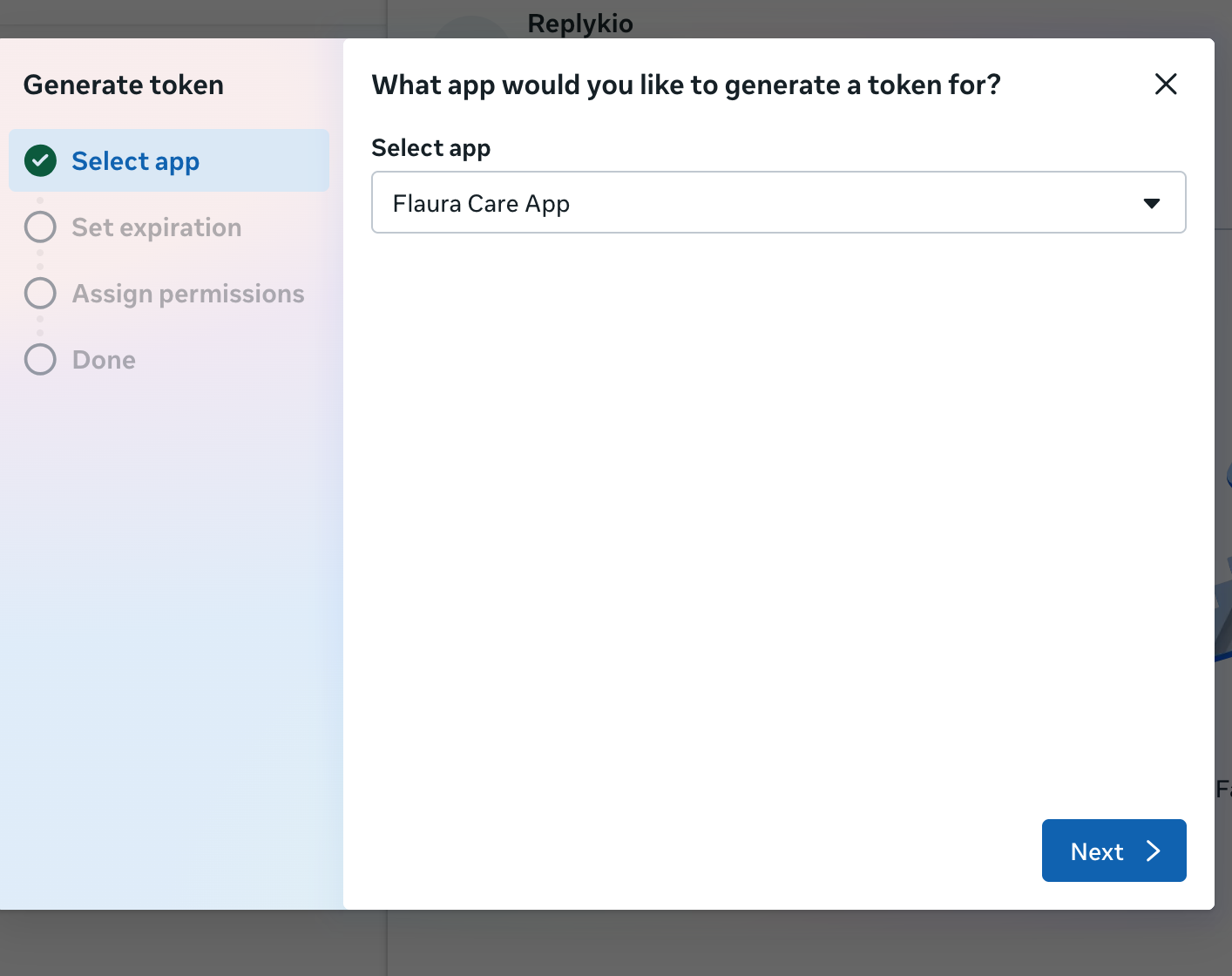
Choose your Meta app and click Next.
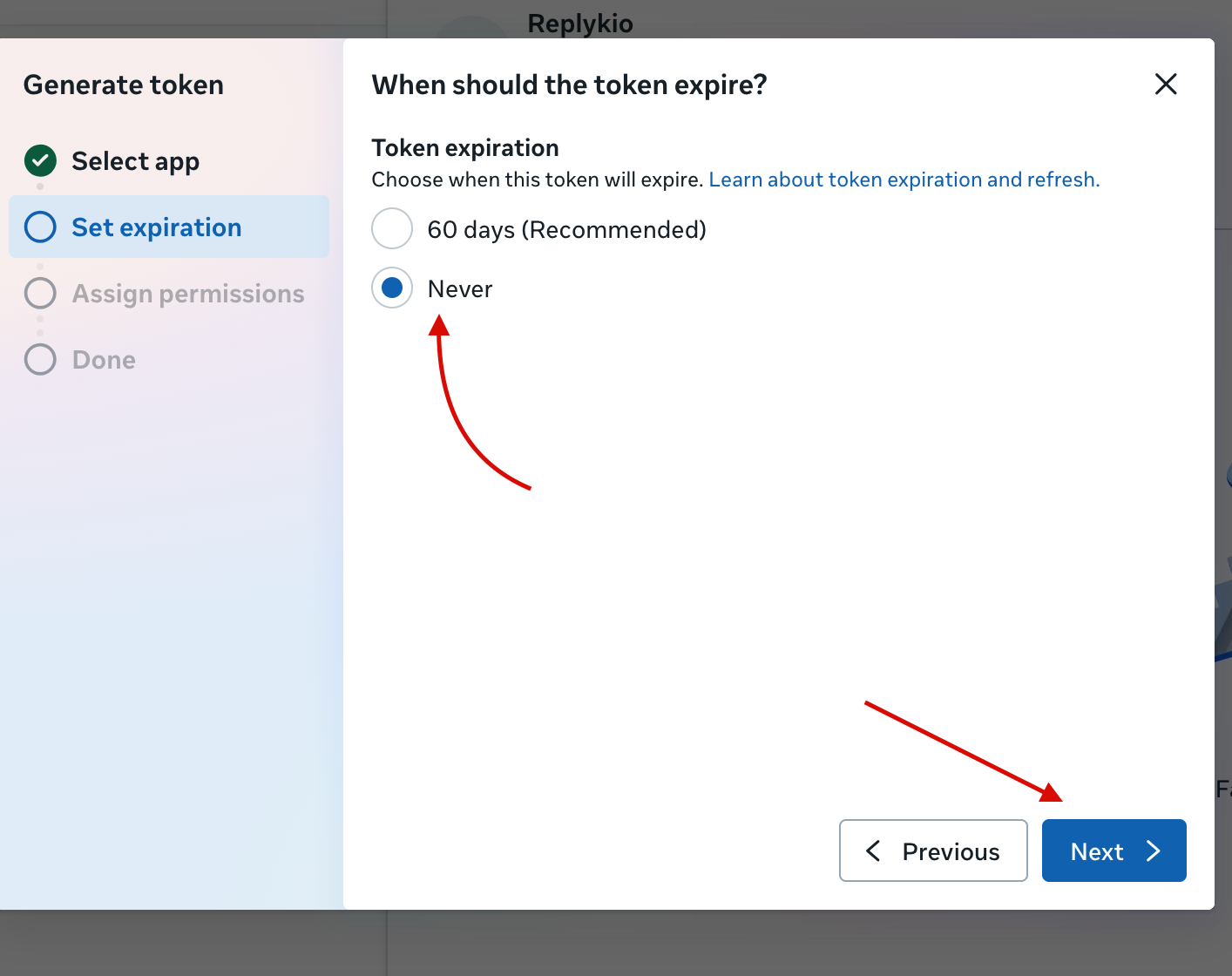
3b — Set Expiration to Never
Select Never so the token never expires.
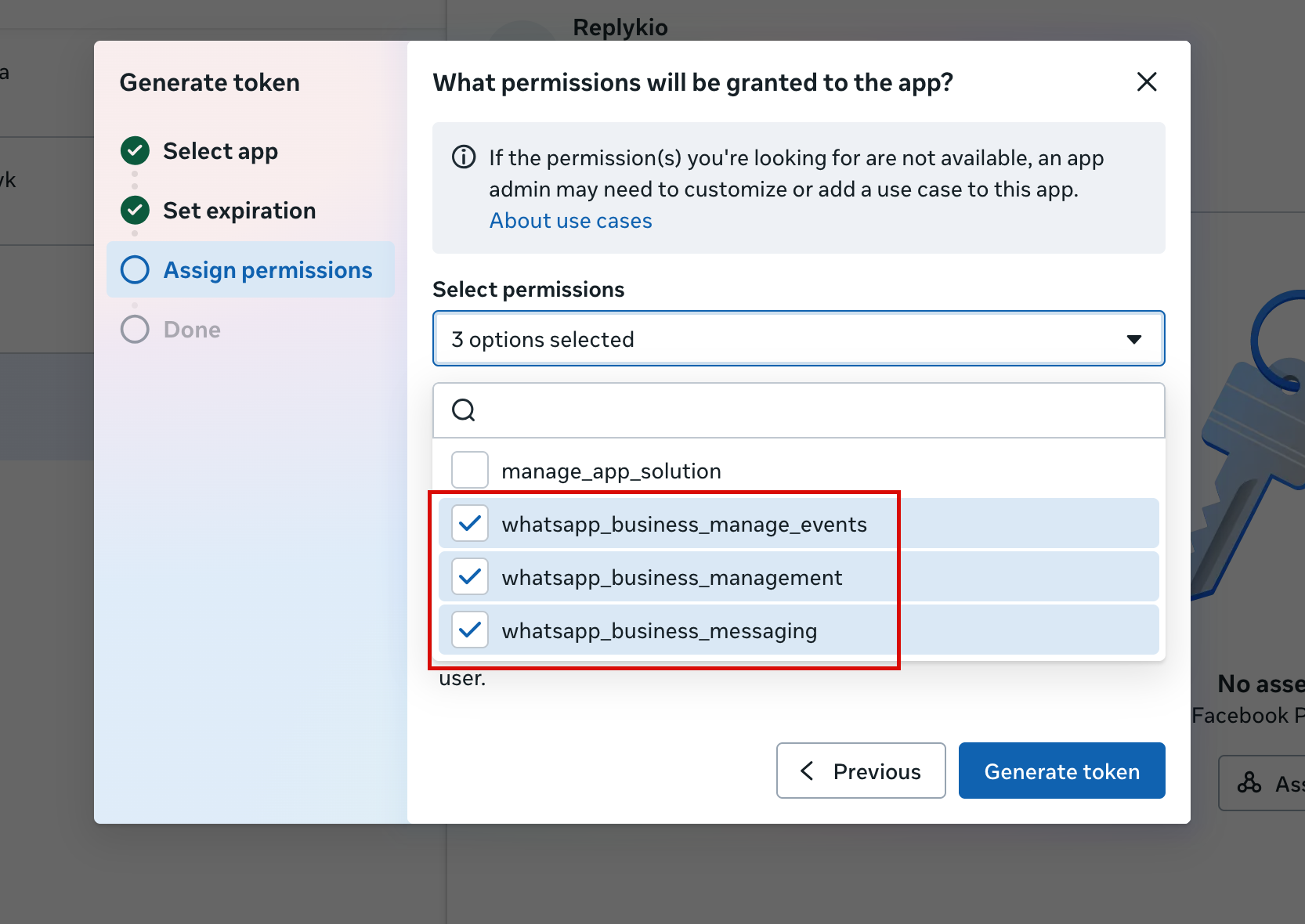
3c — Assign Permissions
Select both WhatsApp permissions, then click Generate token:
whatsapp_business_managementwhatsapp_business_messaging
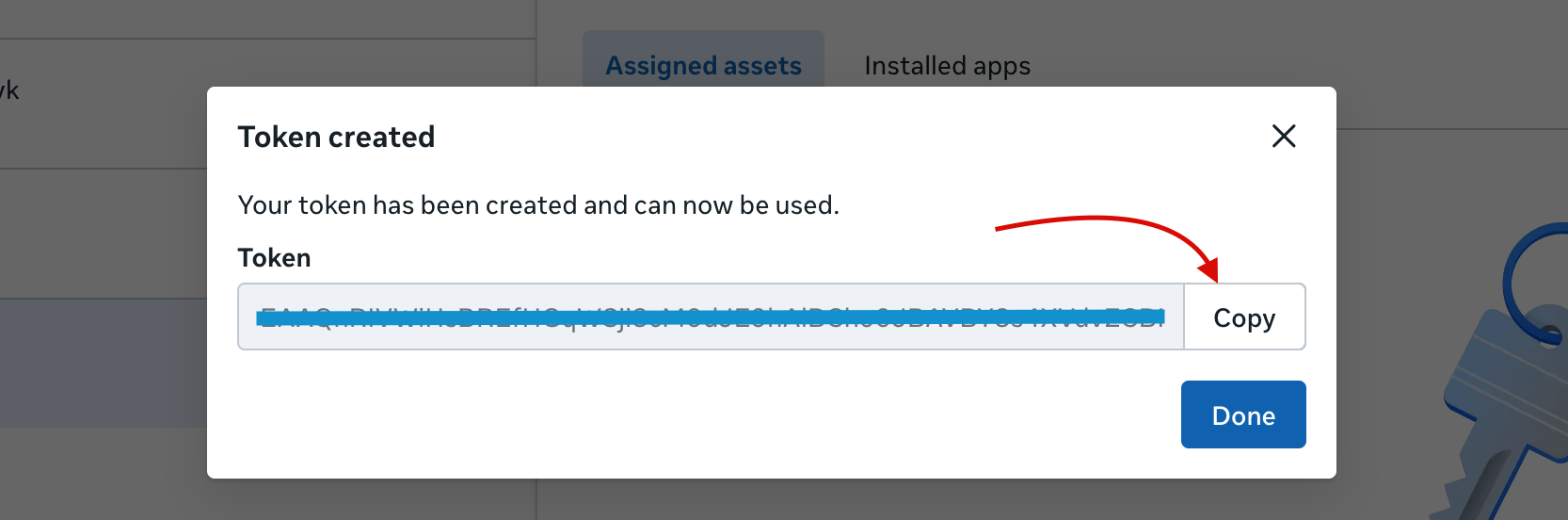
3d — Copy Your Token
Copy and save the token immediately — it will only be shown once.
Get Remaining Credentials from Your Meta App
- WABA ID — In your Meta App dashboard, go to WhatsApp → API Setup. Find WhatsApp Business Account ID.
- Phone Number ID — Listed under your phone numbers in the API Setup section.
- App Secret — Go to App Settings → Basic and copy the App Secret.
Connect in Replyk
- Go to Business Settings → WhatsApp tab.
- Click Manual Connection.
- Enter your Access Token, App Secret, and WABA ID.
- Click Fetch Phone Numbers or enter Phone Number ID manually.
- Optionally enter your 6-digit PIN (if two-step verification is enabled).
- Click Connect WhatsApp.
Configure Webhook in Your Meta App
After connecting, Replyk automatically generates a unique Verify Token for your connection. You can find both the Callback URL and Verify Token in the Webhook Configuration section of your WhatsApp connection status panel — use the copy buttons to copy them easily.
- In your Meta App, go to WhatsApp → Configuration → Webhooks.
- Set Callback URL to:
https://replyk.io/api/whatsapp/webhook - Set Verify Token to the value shown in your Replyk dashboard under Webhook Configuration.
- Subscribe to:
messagesandmessage_template_status_update.
Facebook Embedded Signup (OAuth)
Use Meta's Embedded Signup to connect without manually entering credentials.
- In Business Settings → WhatsApp, click Connect with Facebook.
- A Facebook popup opens — log in and select your WhatsApp Business Account.
- Select or create the phone number to use.
- Close the popup — Replyk exchanges the authorization code for an access token.
Messaging Windows
24-Hour Customer Service Window — Free
Opens when a customer messages you. Send any message type for free while active.
72-Hour Free Entry Point Window
For conversations from Click-to-WhatsApp ads. Template messages only, but free for 72 hours.
Window Closed — Paid Templates Only
After windows expire, only pre-approved template messages can be sent. Meta charges per-message fees.
Messenger & Instagram
Let the same AI Agent sell on Facebook Messenger and Instagram DMs.
Connecting a Channel
- Go to Business Settings → Channels.
- Click Connect on Messenger or Instagram — a Facebook login popup opens.
- Log in and grant access to the Facebook Page (Messenger) or the Instagram professional account linked to it.
- Pick the Page or Instagram account to connect — Replyk subscribes the webhook automatically.
How Channel Conversations Work
- Incoming DMs are answered by the same AI Agent, using the same catalog, offers, and instructions as WhatsApp.
- Channel conversations appear in the Conversations page alongside WhatsApp chats, tagged with their source.
- If you reply manually from the connected Page or Instagram account, the AI automatically pauses for 30 minutes so you never talk over each other.
- Plan limits (per business): FREE/BASIC=1, PRO=3, ENTERPRISE=10 Messenger pages — and the same for Instagram accounts.
Store Connections
Connect your e-commerce store so orders flow into Replyk automatically.
General Setup
- Go to Business Settings → Store Connections.
- Click + Add Connection and select your platform.
- Enter the required credentials.
- Click Validate to test, then Save.
- Copy the webhook URL and configure it in your store.
- Optionally click Sync Products to import your catalog.
Shopify
Credentials: Access Token, API Secret, Store URL (mystore.myshopify.com)
Features: Product sync, HMAC-SHA256 webhook verification, COD support, order tracking.
WooCommerce
Credentials: Consumer Key, Consumer Secret, Webhook Secret, Store URL
Features: Product sync via REST API, HMAC-SHA256 verification, COD support.
YouCan
Credentials: Access Token, Store URL
Features: Product sync, HMAC-SHA256 verification. Popular in Morocco.
LightFunnels
Credentials: Access Token, Client Secret, Store URL
Features: GraphQL product sync, HMAC-SHA256 verification. Popular in MENA.
Manual / Custom Store (Webhook API)
For custom platforms. You receive a webhook endpoint and secret to send orders from any system.
Create a Manual Connection
Go to Store Connections, click + Add Connection, select Manual/Custom, name it, and save.
Authenticate Your Requests
Include your webhook secret in the x-webhook-secret header.
POST /api/store-webhook/MANUAL/{connectionId}
Content-Type: application/json
x-webhook-secret: YOUR_WEBHOOK_SECRETSend Order Payloads
Required fields: external_order_id, customer_name, customer_phone, total_amount, items (array with sku, quantity, price).
{
 "external_order_id": "ORD-12345",
 "external_order_number": "INV-2026-001",
 "customer_name": "Ahmed El Fassi",
 "customer_phone": "+212600000001",
 "customer_email": "[email protected]",
 "customer_address": "123 Rue Mohammed V",
 "customer_city": "Casablanca",
 "customer_country": "MA",
 "total_amount": 350.00,
 "subtotal": 300.00,
 "shipping_cost": 50.00,
 "discount": 0,
 "currency_code": "MAD",
 "payment_method": "COD",
 "notes": "Please deliver in the morning",
 "items": [
 {
 "sku": "ARG-100",
 "quantity": 2,
 "price": 150.00
 }
 ]
}Test with cURL
curl -X POST \
 https://replyk.io/api/store-webhook/MANUAL/{connectionId} \
 -H "Content-Type: application/json" \
 -H "x-webhook-secret: YOUR_WEBHOOK_SECRET" \
 -d '{
 "external_order_id": "ORD-12345",
 "customer_name": "Ahmed",
 "customer_phone": "+212600000001",
 "total_amount": 350,
 "currency_code": "MAD",
 "items": [
 { "sku": "PROD-001", "quantity": 1, "price": 350 }
 ]
}'Response Codes
Success (200):
{
 "success": true,
 "orderId": "clx1abc...",
 "orderNumber": "ORD-26-001-01-A1"
}
Error (400):
{
 "statusCode": 400,
 "message": "Validation failed",
 "errors": [
 "customer_phone must be a string",
 "items must contain at least 1 element"
 ]
}
Other codes: 401 (invalid secret), 404 (connection not found), 409 (duplicate order).
Google Sheets
Import orders straight from a Google Sheet — Replyk polls the sheet and turns matching rows into orders (GOOGLE_SHEETS source).
- Connect your Google account and pick the spreadsheet and tab.
- Set row-filter rules so only the rows you want become orders.
- Map the sheet columns to order fields (name, phone, product, price…).
- Choose a WhatsApp template and sender, then pick a sync mode (live only, or include historical rows).
Two connection purposes: New Orders — each matching row becomes a draft order and the Agent runs a confirmation conversation; Delivery Follow-up — re-engage customers whose delivery failed (recovery message, no order created).
Full walkthrough: Google Sheets guide (authorizing, column mapping, and row rules).
Products & Catalog
Manage your product catalog for the AI Agent to reference during conversations.
Product Management
Products are the core of your sales operation. The AI uses your catalog to recommend items, answer questions, and build orders.
- Add products — Go to Business → Products → Add Product.
- Required fields: Name, price, currency.
- Optional fields: SKU, description, images, category, stock quantity, cost price.
- Upsell/Add-on flags: Mark products as upsells or add-ons for AI recommendations.
- Stock tracking: Enable to track inventory and prevent overselling.
Product Sync from Stores
Automatically import products from connected stores (Shopify, WooCommerce, YouCan, LightFunnels).
- Connect your store in Business Settings → Store Connections.
- Click Sync Products on the connection.
- Products are imported with name, price, images, SKU, and variants.
- Re-sync anytime to update changes.
WhatsApp Catalog Sync
Sync your products to WhatsApp's native product catalog.
- Enable in Business Settings → WhatsApp → Catalog Sync.
- Products appear in WhatsApp's built-in catalog feature.
- Customers can browse products directly in the chat.
Plan Limits
FREE: 10 products
BASIC/PRO/ENTERPRISE: Unlimited products
Offers & Bundles
Create special offers and product bundles for the AI to promote.
Creating Offers
Offers bundle multiple products together at a special price.
- Go to Business → Offers → Create Offer.
- Give your offer a name and description.
- Add products to the bundle.
- Set the offer price (typically discounted from individual prices).
- Set availability dates (optional).
- Save and activate.
Plan Limits
FREE: 2 offers
BASIC/PRO/ENTERPRISE: Unlimited offers
Shipping Carriers
Connect Moroccan shipping carriers to send orders directly from Replyk.
General Carrier Setup
- Go to Business Settings → Shipping.
- Click + Add Connection and select your carrier.
- Enter the required API credentials.
- Click Test to validate before saving.
- Choose Handling Type: STOCK (warehouse) or PICKUP (ramassage).
- For STOCK, select your Warehouse City.
- Optionally mark as Default for auto-assignment.
Ameex
Credentials: API ID, API Key, Business ID
Features: Tracking, Cancellation, COD, Stock/Warehouse, Allow Open, Fragile, Try-Before-Buy, Replace.
Coliix
Credentials: API Key, Warehouse (Agadir/Casablanca), Store Name (optional)
Features: Tracking, COD, Stock/Warehouse. No cancellation support.
Sonicod
Credentials: API Key (20 chars), Store Name
Features: Tracking, COD, Stock/Warehouse. Parcel types: NORMAL, CHANGE, RETURN.
OzonExpress
Credentials: Customer ID, API Key
Features: Tracking, COD, Stock/Warehouse, Real-time Webhooks, Delivery Notes (PDF), Bulk Tracking, Delivery Man Info.
Sendit
Credentials: Public Key, Secret Key
Features: Tracking, Cancellation, COD, Stock/Warehouse, downloadable shipping labels (PDF).
ForceLog
Credentials: API Key (from Paramètres → Mon compte)
Features: Tracking, COD, Stock/Warehouse. No cancellation support.
Local Courier
Credentials: Courier ID, Zone (optional, for transit-time estimates)
Features: Tracking, Cancellation, COD. For in-house or local delivery — no warehouse stock handling.
Tracking & Delivery Notes
- Auto polling: Every 15 minutes for carriers with sync enabled.
- Real-time: OzonExpress pushes status updates instantly.
- Manual sync: Trigger from order detail page.
- Delivery Notes (PDF): OzonExpress and Sendit. Standard, ticketsA4, tickets10x10 formats.
Message Templates
Pre-approved messages required when messaging outside the 24-hour service window.
Template Types
Standard Templates
Header (text/image/video/doc), body (max 1024 chars), footer (max 60 chars), up to 10 buttons.
Carousel Templates
2–10 swipeable cards. Each card: IMAGE/VIDEO header, body (max 160 chars), buttons. MARKETING category only.
Categories & Statuses
UTILITY — Transactional: confirmations, shipping updates.
MARKETING — Promotional: offers, announcements. Required for carousels.
AUTHENTICATION — OTP and verification messages.
Creating Templates
- Go to Business Settings → Templates → Create Template.
- Set name (lowercase, letters/numbers/underscores), category, language.
- Add header, body with
{{1}}variables, footer, buttons. - Preview and submit to Meta for approval (usually minutes to hours).
Plan limits (template messages sent per billing cycle): FREE=100, BASIC=1,000, PRO=10,000, ENTERPRISE=Unlimited. Messages sent above the limit cost $0.002 each.
Template Variables
Numbered: {{1}}, {{2}}, {{3}} — WhatsApp standard format.
Named (auto-resolved):
{{customer_name}}{{order_number}}{{product_name}}{{items_list}}{{amount}}{{total_amount}}{{currency}}{{phone}}{{address}}{{city}}{{tracking_number}}{{carrier}}{{delivery_man_name}}{{delivery_man_phone}}{{business_name}}{{date}}{{time}}Button Types
QUICK_REPLY — Simple reply button (25 chars max).
URL — Opens a URL, supports dynamic variables.
PHONE_NUMBER — Dials a phone (E.164 format). Not in carousels.
COPY_CODE — Copies coupon/promo code. Not in carousels.
AI Agents
Autonomous AI Sales Agents that handle the full sales cycle 24/7.
Agent Profiles
Pick your Agent's persona in Business Settings → AI Agent. Each persona has its own name, tone, and language mix — from pure Darija to French-Darija and Darija-English blends.
- Sara (Professional & Warm, Darija) is the default persona.
- The available lineup depends on your business country and product type — it is curated and updated by the Replyk team.
- Switch personas anytime; try them side by side in the Playground first.
What the AI Agent Can Do
Custom Instructions
Guide your AI's behavior in Business Settings → AI Agent → Custom Instructions.
- Each instruction is a single sentence (max 30 words).
- Use for: brand voice, return policy, delivery promises, upsell rules.
- Plan limits: FREE=0, BASIC=3, PRO=5, ENTERPRISE=10.
Agent Q&A (Knowledge Base)
Add FAQ entries in Business Settings → AI Agent → FAQ.
- Question + answer pairs the AI uses to respond.
- Great for: return policy, delivery times, payment methods.
- Max 500 chars per question, 1000 chars per answer.
Cost Control
Limit AI usage per conversation in Business Settings → Messaging → Cost Control.
- Set max incoming messages per conversation (default: 50).
- When reached, conversation is BLOCKED and AI stops.
- Exemptions: active orders, past customers (VIP), specific statuses.
- Manual override from chat view.
AI Testing Playground
Test your AI in a sandbox before going live (all plans).
- Access from Business Settings → Playground.
- Chat in a WhatsApp-style interface.
- See memory, scheduled tasks, and function calls in real time.
- Switch agent profiles to compare behavior.
Self-Learning
When enabled, your Agent learns from its own finished conversations and gets better at selling your products over time.
- After a conversation ends (won, lost, or cancelled), the Agent reflects on what worked and what didn't.
- Insights are consolidated into a playbook — sales tactics, objection handling, and product knowledge — that future replies draw from.
- Review the learned playbook, its stats, and per-conversation reflections in Business Settings → AI Agent → Self-Learning.
- Toggle it off anytime — the Agent stops learning but keeps using what it already knows.
Conversations
View and manage all WhatsApp conversations with your customers.
Conversation List
Access all conversations in the main Conversations page.
- Filter by: Status (active/blocked), source (WhatsApp/store), conversion status, interest level.
- Search: By customer name, phone, or message content.
- Sort: By last message time, unread first.
- Bulk actions: Block, unblock, export.
Human Takeover
Pause the AI and respond manually when needed.
- Open a conversation and click Take Over.
- AI pauses — you respond manually via the chat interface.
- Send messages, media, templates, or product cards.
- Click Resume AI to hand back to the agent.
Messaging Window Status
Each conversation shows its current messaging window:
- 24h Window — Free messages allowed.
- 72h FEP Window — Free template messages (ad-sourced).
- Window Closed — Paid templates only.
Blocking Conversations
Block abusive or spam conversations.
- Click Block on any conversation.
- AI stops responding, messages are still received but not processed.
- Unblock anytime to resume.
- Blocked conversations don't count toward cost control limits.
Customers
The Customers tab (Business → Customers) gathers everyone who has chatted or ordered, across all channels.
- Filter by interest level, orders, and activity; jump straight into a customer's conversation.
- CSV export of your customer list is available on the ENTERPRISE plan.
Order Management
Order Status Flow
Additional statuses: NO_WHATSAPP, HUMAN_VERIFICATION_NEEDED, ARRIVED_AT_CITY, DELIVERY_SCHEDULED, POSTPONED, NO_RESPONSE, OUT_OF_ZONE, WRONG_PHONE, UNREACHABLE, TRAVELING, REFUSED, CARRIER_CANCELLED, DUPLICATE, REFUNDED.
Order Sources
WHATSAPP — Created by AI Agent.
STORE_WEBHOOK — From external store.
MANUAL — Created from dashboard.
API — Via external API call.
GOOGLE_SHEETS — Imported from a connected Google Sheet.
Shipping Orders
- Open order and click Send to Carrier.
- Select shipping connection (or use default).
- Enter delivery city (fuzzy search matches carrier cities).
- Configure options (allow open, fragile, parcel type).
- Confirm — a tracking number is assigned and the order becomes FULFILLED (it moves to SHIPPED once the carrier picks it up).
Scheduled Tasks
The AI can schedule follow-up messages and actions for later.
How Scheduled Tasks Work
During conversations, the AI can schedule future actions:
- SEND_MESSAGE — Follow-up message at a specific time.
- CREATE_ORDER — Delayed order creation.
- Example: "I'll follow up with you tomorrow at 10am."
Managing Tasks
- View pending tasks in Business → Scheduled Tasks.
- Cancel tasks before they execute.
- See which conversation each task belongs to.
- Tasks execute automatically at the scheduled time.
Analytics
Track performance, conversions, and AI usage. Available on BASIC and above.
Dashboard Overview
The dashboard shows key metrics at a glance:
- Total Orders — Orders created in the period.
- Revenue — Total order value.
- Conversations — Active WhatsApp conversations.
- Conversion Rate — Conversations that resulted in orders.
- AI Responses — Replies sent by the Agent.
- AI Cost — Token usage and cost.
Time Filters & Daily Breakdown
Filter by: Last 7 days, Last 30 days, or custom date range.
Charts show daily trends for orders, messages, token usage, and revenue.
The dashboard also surfaces daily AI recommendations — actionable tips based on yesterday's conversations, ads, and order quality.
Meta Conversions API
Track Facebook/Instagram ad conversions from WhatsApp conversations.
Setup
- Go to Business Settings → Integrations → Meta Conversions.
- Enter your Pixel ID and Access Token.
- Or click Create Pixel via WABA to create automatically.
- Save and enable.
Tracked Events
Replyk automatically fires these conversion events:
- Lead — When the AI detects a qualified lead (the conversation reaches high or medium interest), not on every new chat.
- Purchase — When an order is created from the conversation.
- Schedule — When a follow-up is scheduled.
Customize event mapping and send test events in the integration settings.
TikTok Conversions
Track TikTok ad conversions via Offline Events.
Setup & Events
- Go to Business Settings → Integrations → TikTok Conversions.
- Enter your Event Set ID and Access Token.
- Save and enable.
Replyk fires conversion events to TikTok when orders are created or confirmed.
Google Analytics (GA4)
Send server-side conversion events from WhatsApp to your GA4 property.
Setup & Events
- Go to Business Settings → Integrations → Google Analytics.
- Enter your GA4 Measurement ID and a Measurement Protocol API Secret (created in GA4 Admin → Data Streams).
- Save and enable.
Replyk sends purchase and lead events server-side via the Measurement Protocol, with SHA-256-hashed phone and email for Enhanced Conversions — so Google can match WhatsApp orders to ad clicks without a gclid.
Retargeting Campaigns
Send WhatsApp template messages to filtered audiences. ENTERPRISE plan only.
Creating a Campaign
- Go to Business → Retargeting → New Campaign.
- Select an approved WhatsApp template and fill in variables.
- Build audience: filter by interest level, order status, city, product, date range.
- Optionally import external contacts (CSV).
- Send now or schedule for later.
- Review cost estimate, then launch.
Audience Interest Scoring
AI automatically scores contacts based on engagement:
HIGH — Actively interested, high engagement.
MEDIUM — Some engagement.
LOW — Minimal engagement.
NOT_SPECIFIED — New or unscored.
Cost & Analytics
- Real-time cost calculation per WhatsApp market (country).
- Costs vary by template type (MARKETING vs UTILITY).
- Post-send analytics: sent, delivered, failed, read, replied.
Team Management
Add team members with role-based access control.
Roles & Permissions
Each team member has one role per business. The role decides what they can see and do inside that business — orders, conversations, products, settings, billing, and so on. The list below covers every role available today.
Roles you can assign
| Role | Best for | What they can do |
|---|---|---|
| OWNER | Business founder / account holder | Full control of the business: settings, billing, team, and every feature below. Cannot be removed and is the only role that can transfer ownership or delete the business. |
| ADMIN | Co-administrator / second-in-command | Everything a Manager can do, plus edit business settings (general & AI) and configure the AI Agent. Can view the team. Cannot manage billing, add or remove team members, or transfer / delete the business. |
| MANAGER | Day-to-day team leader | Manage products, offers, templates, scheduled tasks, conversations, orders, analytics, and support. Cannot change business-level settings, billing, or the team list. |
| ORDER_PROCESSOR | Customer-service / sales agent | Handle conversations, work on orders, and reply to support tickets. Read-only access to products, templates, and scheduled tasks. No access to settings or analytics. |
| ASSEMBLER | Warehouse / packaging staff | See the order list and update order status (e.g. packed, ready to ship). No access to conversations, products, customers, or any setting. |
What each role can access
| Area | OWNER | ADMIN | MANAGER | ORDER_PROCESSOR | ASSEMBLER |
|---|---|---|---|---|---|
| Dashboard overview | ✓ | ✓ | ✓ | ✓ | — |
| Business settings (general & AI) | ✓ | ✓ | — | — | — |
| Billing & subscription | ✓ | — | — | — | — |
| Team members & invitations | ✓ | view | — | — | — |
| Delete business / transfer ownership | ✓ | — | — | — | — |
| Products, offers, bundles | ✓ | ✓ | ✓ | view | — |
| Message templates | ✓ | ✓ | ✓ | view | — |
| Scheduled tasks | ✓ | ✓ | ✓ | view | — |
| Conversations (read & reply) | ✓ | ✓ | ✓ | ✓ | — |
| Orders — view | ✓ | ✓ | ✓ | ✓ | ✓ |
| Orders — update status | ✓ | ✓ | ✓ | ✓ | ✓ |
| Orders — edit, cancel, refund | ✓ | ✓ | ✓ | ✓ | — |
| Orders — permanent delete | ✓ | ✓ | ✓ | — | — |
| Support tickets | ✓ | ✓ | ✓ | ✓ | — |
| Uploads & media library | ✓ | ✓ | ✓ | — | — |
| Notifications (your own) | ✓ | ✓ | ✓ | ✓ | ✓ |
| Analytics & reports | ✓ | ✓ | ✓ | — | — |
Roles apply per business. The same person can hold different roles in different businesses. Members only ever see data that belongs to the businesses they were explicitly invited to.
Adding Team Members
- Go to Business Settings → Team.
- Enter email and select role.
- Click Add Member.
- Member receives an invitation.
Seats included: FREE=1, BASIC=2, PRO=10, ENTERPRISE=20. On paid plans you can buy extra seats for $9/member per month.
Order Routing
Distribute incoming draft orders among your team automatically.
- In Business Settings → Team, assign each member a percentage of incoming orders (total must not exceed 100%).
- New draft orders are assigned according to those percentages; unallocated share stays unassigned.
- Reassigning an order also moves its conversation, sibling orders, and support tickets to the same member.
- Only the OWNER and ADMIN can view or edit routing rules.
Billing & Plans
Subscription Plans
| Feature | FREE | BASIC $29.99/mo | PRO $89.99/mo | ENTERPRISE $190/mo |
|---|---|---|---|---|
| Orders/month | 10 | 1,000 | 20,000 | Unlimited |
| Businesses | 1 | 1 | 5 | ∞ |
| Team members (seats) | 1 | 2 | 10 | 20 |
| WhatsApp numbers | 1 | 1 | 3 | 10 |
| Products | 10 | ∞ | ∞ | ∞ |
| Offers | 2 | ∞ | ∞ | ∞ |
| Template messages/mo | 100 | 1,000 | 10,000 | ∞ |
| Carriers | 1 | 1 | 3 | 10 |
| Custom instructions | 0 | 3 | 5 | 10 |
| Analytics | — | ✓ | ✓ | ✓ |
| Retargeting | — | — | — | ✓ |
| Priority support | — | — | ✓ | ✓ |
| Customer CSV export | — | — | — | ✓ |
10% discount on yearly billing.
Usage Fees
- Delivery fee: 0.9% of the order total, deducted from your wallet when an order is delivered (all plans).
- Order overage: above your monthly order quota, each extra order costs a small percentage of its value — BASIC 0.03%, PRO 0.015%. On FREE, orders stop at the limit (no overage).
- Template overage: template messages beyond the monthly quota cost $0.002 each (FREE/BASIC/PRO).
Wallet & AI Usage
AI conversations are billed per-message from a prepaid wallet.
- Top up at Dashboard → Top Up ($100, $200, $500, $1,000 or custom).
- Payments via Stripe (cards).
- Low balance alerts at $5.
- Detailed usage logs: cost per conversation, model, day.
Notifications
Stay informed about important events.
Auto-triggered Notifications
Delivery Channels
- In-app — Bell icon with unread badge.
- Web Push — Browser notifications (opt-in).
- Mobile Push — Via Replyk mobile app.
Manage in Me → Settings → Notifications.
Support
Customer Support Tickets
When customers report issues, the AI creates support tickets.
Ticket reasons:
View tickets in Business → Support Tickets. Each links to the conversation and optional order.
Contact Support
For bugs, billing, or feature requests:
- [email protected]
- +12029607468
- +212717444040
- Contact form: Dashboard → Contact
Still need help?
Our team replies within one business day. Tell us what you're stuck on and we'll guide you through it.
Replyk — WhatsApp AI Sales Agents for COD E-Commerce